Git basics
Git is a free and open-source version control system, originally
created by Linus Torvalds in 2005. Unlike older centralized
version control systems such as SVN and CVS, Git is distributed:
every developer has the full history of their code repository
locally. This makes the initial clone of the repository slower,
but subsequent operations such as commit, blame, diff, merge, and
log dramatically faster.
Git also has excellent
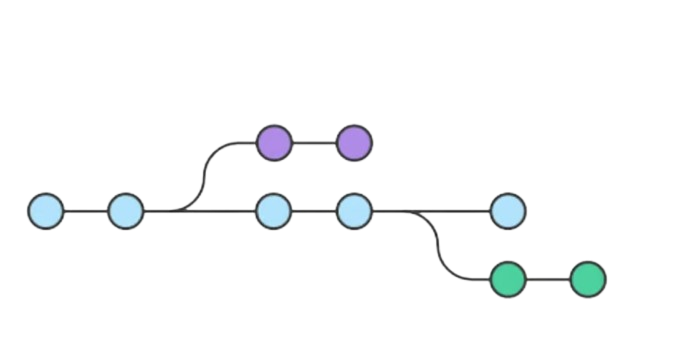
support for branching, merging, and rewriting repository history,
which has led to many innovative and powerful workflows and tools.
Pull requests are one such popular tool that allows teams to
collaborate on Git branches and efficiently review each other's
code. Git is the most widely used version control system in the
world today and is considered the modern standard for software
development.
About us

Sidney - February 30 1972
Sidney is the main professor at the Git Academia. He has been teaching the same 3 courses since 1992. Legend has it that he has never touched grass in his life. His hobbies are coding and preparing lessons for the total of 3135 students in his class.

Rafael - June 31 1981
Rafael is the owner of the academy, since it was passed down to him from his father in 2005. In the 19 years that he has owned the academy, he has made some significant changes. Mainly, the fact that the courses are now available online. Legend has it that Rafael’s net worth is well over 32 billion dabloons. His hobbies are counting money and drinking champagne on his yacht.

Dim - December 32 1993
Dim is the janitor, his job is to keep the building clean and make sure the students aren’t on their phone during class. He has worked for Git Academia for 20 years, since he was just 7 years old, talking about dedication! Legend has it, Dim doesn’t own a house and sleeps in the supply closet. His hobbies are cleaning gum off of tables and taking studen’s phones away.
Contact us
Courses
Quiz 1
Git basics
Quiz 2
Git Push and Pull
Quiz 3
Key Features of Git
Key Concepts of Git
- Repository: A directory where your project's files and their complete history of changes are stored.
- Commit: A snapshot of your project at a given point in time.
- Branch: A parallel version of your repository, allowing you to work on different features or fixes simultaneously.
Initializing a Git Repository
The first step to using Git is to create a repository. This can be done in two ways: initializing a new repository or cloning an existing one.
The `git init` command is used to create a new Git repository. This command sets up all the necessary files and directories for Git to start tracking changes in your project.
Steps to initialize a Git repository:
- Open your terminal or command prompt.
- Navigate to the root directory of your project.
- Run the following command:
git init
This command will create a hidden `.git` directory in your project folder, which contains all the metadata and objects for your repository. After running `git init`, your project directory becomes a Git repository, and you can start tracking your files.
Cloning an Existing Repository
If you want to contribute to an existing project or start working on an existing codebase, you can use the `git clone` command. This command creates a local copy of a remote repository on your machine. It not only copies the files but also the entire version history of the project.
Steps to clone a Git repository:
- Open your terminal or command prompt.
- Navigate to the directory of your project.
- Run the following command, replacing `<url>` with the repository's URL:
git clone <url>
This command will create a new directory with the same name as the repository, containing all the files and history.
Example:
git clone https://github.com/user/repository.git
This command clones the repository located at https://github.com/user/repository.git into a directory named repository on your local machine.
Git Push and Pull
In the world of Git, two essential commands for interacting with remote repositories are `git push` and `git pull`. These commands allow you to share your changes with others and keep your local repository in sync with the remote repository.
The `git push` command is used to upload your local repository content to a remote repository. By pushing your changes, you make them available to other collaborators who have access to the same remote repository.
Steps to push changes to a remote repository:
1. Ensure you have committed your changes locally:
git commit -m "Your commit message"
2. Push your changes to the remote repository:
git push origin <branch-name>
Here, `origin` is the default name of the remote repository, and `<branch-name>` is the name of the branch you want to push to.
Example:
git push origin main
This command pushes the changes from your local `main` branch to the `main` branch in the remote repository named `origin`.
The `git pull` command is used to fetch and integrate changes from a remote repository into your current branch. It is a combination of `git fetch` and `git merge`, meaning it first fetches the changes from the remote repository and then merges them into your local branch.
Steps to pull changes from a remote repository:
1. Run the following command:
git pull origin <branch-name>
This command will fetch the changes from the specified branch in the remote repository and merge them into your current local branch.
Example:
git pull origin main
This command pulls the latest changes from the `main` branch in the remote repository named `origin` and merges them into your current local branch.
Key Features of Git
Git is a powerful version control system that provides a variety of features to help developers manage their projects efficiently. Understanding these features can significantly enhance your productivity and collaboration capabilities.
1. Distributed Version Control
One of Git's fundamental features is its distributed architecture. Unlike centralized version control systems, Git allows every developer to have a complete copy of the repository, including its full history. This setup enhances collaboration and ensures that no single point of failure can disrupt development.
2. Branching and Merging
Git makes it easy to create, manage, and merge branches. Branching allows you to work on multiple features or bug fixes simultaneously without affecting the main codebase. Merging helps integrate changes from different branches back into a single branch, facilitating smooth collaboration.
Commands for Branching and Merging:
- To create a new branch: git branch <branch-name>
- To switch to a branch: git checkout <branch-name> or git switch <branch-name>
- To merge a branch into the current branch: git merge <branch-name>
3. Staging Area
Git introduces a unique concept called the staging area (or index). Before committing changes to the repository, you can add them to the staging area. This allows you to review and fine-tune the changes that will be included in the next commit.
Commands for Staging:
- To add changes to the staging area: git add <file>
- To review staged changes: git status
4. Commit History
Git keeps a detailed history of all changes made to the repository. Each commit is a snapshot of the project at a given point in time, with a unique identifier, author information, and a commit message describing the changes.
Commands for Viewing History:
- To view commit history: git log
- To view a specific commit: git show <commit-hash>
5. Collaboration via Remote Repositories
Git allows multiple developers to collaborate on a project by pushing and pulling changes to and from remote repositories. This feature ensures that everyone is working with the latest version of the code.
Commands for Collaboration:
- To push changes to a remote repository: git push
- To pull changes from a remote repository: git pull
- To fetch changes without merging: git fetch
Key Concepts of Git
What is Git?
A programming language
A distributed version control system
A web server
An operating system
Who created Git?
Tim Berners-Lee
Linus Torvalds
Guido van Rossum
Dennis Ritchie
Which command is used to initialize a new Git repository?
git new
git create
git init
git clone
What does the git new command do?
It creates a new Git repository
It clones an existing repository
It lists all branches in the repository
None of the above
What is a Git repository?
A backup tool for files
A directory where your project's files and their complete history of changes are stored
A tool for network monitoring
A file compression tool
Which command is used to copy an existing Git repository?
git copy
git clone
git duplicate
git fork
Select the correct statements about Git:
Git can track changes in files over time
Git can merge changes from multiple collaborators
Git is only used for small projects
Git needs Github to function
Git Push and Pul
What does git push do?
Uploads your local repository content to a remote repository
Downloads changes from a remote repository
Commits your changes locally
Deletes the remote repository
Which of the following steps are necessary before running git push?
What is the purpose of the git pull command?
To fetch and integrate changes from a remote repository into your current branch
To create a new remote repository
To delete a branch in the remote repository
To list all remote branches
Which commands are combined by git pull?
git fetch and git merge
git add and git commit
git status and git log
git clone and git checkout
What are common use cases for git push and git pull?
Sharing your changes with other collaborators
Keeping your local repository up to date with the remote repository
Creating backups of your repository
Automatically resolving merge conflicts
What will happen if you run git pull origin main?
It will fetch the latest changes from the main branch in the remote repository and merge them into your current local branch.
It will push your local changes to the main branch in the remote repository.
It will delete the main branch in the remote repository.
It will list all commits in the main branch.
Key Features of Git
What are the benefits of Git's distributed version control system?
Every developer has a complete copy of the repository
It relies on a central server for all operations
Enhances collaboration by reducing single points of failure
Limits access to the repository history
Which commands are used for branching and merging in Git?
git branch
git merge
git add
git commit
What is the purpose of the staging area in Git?
To directly commit changes to the repository
To review and fine-tune changes before committing
To delete changes
To switch branches
Which commands help you view the commit history in Git?
git log
git show
git status
git clone
What are common use cases for remote repositories in Git?
Pushing changes to share with others
Pulling updates from collaborators
Fetching changes without merging
Committing changes locally
Select the correct statements about Git features:
Git allows creating and managing branches easily
Git does not support merging branches
The staging area helps in reviewing changes before committing
Git keeps a detailed history of all changes